Import your Loop Habit Tracker history
Every habit, every check-in, years of it if you have years of it. Two exports, one file, about a minute. Nothing to retype.
Before you start
You need Loop's full backup — the .db file. Not the CSV export.
The CSV is a readable summary of your check-ins; the .db is the actual database, and
it is the only one of the two that carries your schedules, targets and complete history.
Step by step
-
In Loop Habit Tracker: Settings → Export full backup
Loop writes a file called something like
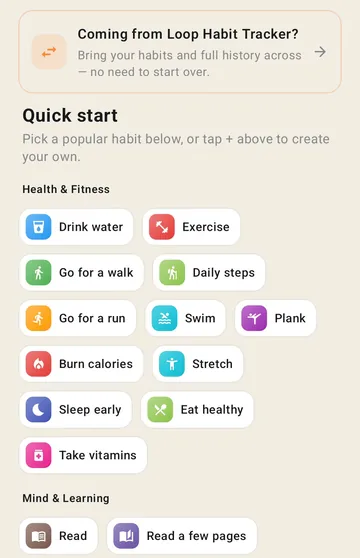
Loop Habits Backup 2026-08-16.dband lets you save or share it. Put it somewhere you can find again — Downloads is fine. - Install Kaizenly and open it On a fresh install the home screen shows a card reading "Coming from Loop Habit Tracker?" — tap it and you go straight to the file picker.
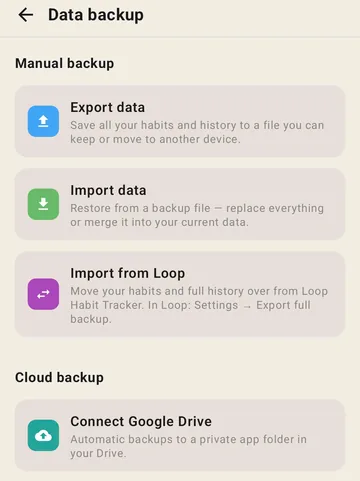
- Already have habits in Kaizenly? Go through Settings instead Settings → Data backup → Import from Loop. Because you have data to protect, this route asks whether to add the Loop habits to what you have or replace everything. On an empty app that question never appears — there is nothing to merge with.
-
Pick the .db file
Loop's export has no registered file type, so the picker shows everything on your device
rather than filtering. Choose the
.dbfile by name; Kaizenly checks the contents and will tell you if it isn't a Loop backup. - Read the import report When it finishes you get a summary of what came in, plus anything worth a second look. The next section explains those.
What carries over
- Every habit, with its name and description
- Every check-in, back to the first day you logged — the full history, not a summary
- Numeric habits with their values, not just a tick
- Schedules: daily, chosen weekdays, and "x times per week" targets
Loop doesn't store an icon per habit, so Kaizenly picks one from the habit's name. Change any that guessed wrong in a couple of taps.
What to check afterwards
Two habit trackers are never a perfect map of each other. Kaizenly imports everything anyway — dropping years of somebody's history to avoid an awkward label is the worse trade — and then names the specific habits you should look at.
"At most" habits read backwards
Loop lets you set a limit — smoke at most 5 a day — where staying under the number is the win. Kaizenly has no equivalent yet, so those import as ordinary count-up goals and will read inverted until you edit them.
Weekly and monthly targets become daily goals
A Loop habit measured per week, like run 20 km a week, keeps the number 20 but it now means per day. The number is carried across unchanged rather than quietly divided, because dividing produces goals like 2.86 km and hides the change from you.
Unusual repeat cycles get rounded
Loop can schedule "every 3 days" or "2 times per 5 days". The closest thing here is a flexible N times per week, so those cadences are approximated.
Your streak numbers may not match Loop's, and that's expected. Streaks and consistency are recalculated with Kaizenly's rules rather than copied over. The underlying check-ins are identical — the arithmetic on top of them differs slightly between the two apps.
If the import is refused
| What you see | What it means |
|---|---|
| "This isn't a Loop backup" | The file isn't a Loop database — usually the CSV export, or the wrong file picked from a long list. Go back to Loop and use Export full backup. |
| "This Loop backup is damaged" | The file is a Loop database but incomplete — often a download that stopped early, or a copy taken while Loop was writing. Export a fresh one. |
| "This Loop backup has no habits in it" | It read fine but is empty. Check you exported from the right device. |
| "Couldn't read that file" | Nothing is known to be wrong with your file — the device likely ran out of room to copy it. Free some storage and retry. |
Keep your Loop backup
Importing doesn't touch the file, and Loop itself is untouched — it stays installed with all
its data until you remove it. Give the new app a couple of weeks before you uninstall anything,
and keep that .db somewhere safe regardless. It is the only complete copy of your
history that doesn't depend on a phone.
Kaizenly is not affiliated with, endorsed by, or derived from Loop Habit Tracker. Loop is an independent open-source project by Álinson S. Xavier. This page describes reading Loop's own export format so that people who want to move can bring their history with them.